Getting Started with Antibot: Setup, Permissions, and Your First Day
Getting started with Antibot takes a few minutes: add the AI Discord community manager to your server, grant the permissions its enabled features need, and follow the short guided setup. This doc from Antibot by Techies Lab walks through the install flow, the exact permissions requested and why, and what to do on day one.
Antibot is designed to be used with no code: install it from your Discord server settings, adjust everything else visually from the dashboard, and let members interact with it through normal conversation instead of memorized commands.
Key Takeaways
- Adding Antibot to a Discord server takes three steps: install it, grant permissions, complete the guided setup.
- Installing a bot requires the Manage Server permission or the server owner's approval - a Discord platform rule, not something specific to Antibot.
- Antibot only requests permissions tied to the features you actually enable, and you can expand access later.
- There is no code to write and nothing to host - every setting lives in a dashboard, and members talk to Antibot the same way they'd talk to a person.
How to Add Antibot to Your Discord Server
Adding Antibot starts the same way as installing any Discord application: click "Add Antibot to Your Server," pick the server from the list Discord shows you, and confirm the install. If you don't own the server yourself, you'll need the Manage Server permission, or direct approval from someone who has it - Discord enforces this at the platform level for every bot, so it isn't an extra hurdle Antibot adds on top.
Once the install completes, Antibot posts a short welcome message in the server and walks new admins through a guided setup directly inside Discord. There's no separate dashboard you have to find and log into before the bot starts doing anything - the first configuration happens right where your members already are.
Antibot Discord Permissions, Explained
A common concern when adding any AI Discord bot is exactly what it can see and do. Antibot requests permissions based on which features are actually turned on, not everything up front. In a typical setup, that means:
- Read and send messages - the baseline permission. Without it, Antibot can't answer questions, hold a conversation, or build the member memory that makes it feel personal rather than generic.
- Manage threads - used specifically by auto-threading, so a fast-moving topic can be split into its own thread automatically instead of flooding the main channel.
- Timeout or remove members - only requested if you turn on moderation features such as auto-flagging. Leave moderation off, and Antibot simply has no ability to act on rule-breakers.
You can grant the minimum set of permissions needed for whatever you want on day one, and expand it later from the dashboard as you turn on more of the product. Every expansion still goes through Discord's own permission approval screen, so nothing is granted quietly in the background.

No Code, No Hosting, No Manual
Setting up Antibot doesn't involve deploying a bot process, generating an API key, or editing a configuration file anywhere. Every setting - which personality it uses, which channels it's active in, whether moderation is on - is a toggle or a text field inside the dashboard. That's a deliberate design choice: a community manager shouldn't need an engineer on staff just to run a Discord bot.
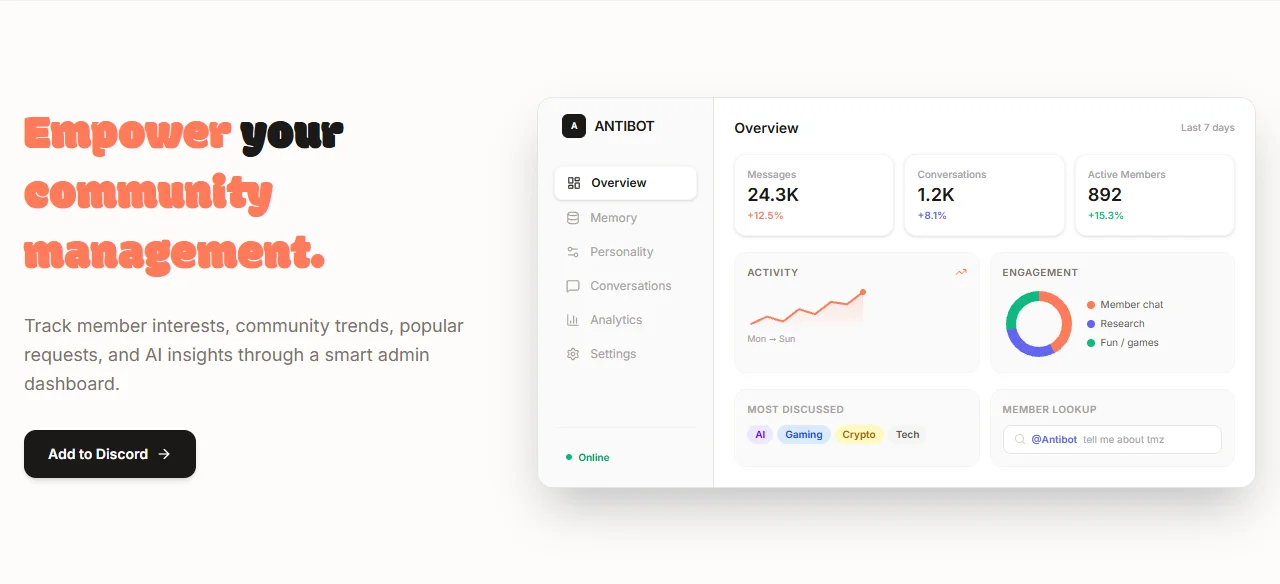
Members don't need to learn anything new either. There are no slash commands to memorize for the core experience - people talk to Antibot the way they'd talk to a knowledgeable member of the server, and it responds in plain English. The Personality & Moderation doc covers how far that plain-English interface extends, including moderation actions.
What to Do on Day One
Once the guided setup finishes, Antibot is already watching whichever channels you gave it access to. A good first test is simply talking to it directly - ask it to look something up, ask it to summarize a channel, or just say hello and see how the response reads. This confirms the install worked before you start layering on more configuration.
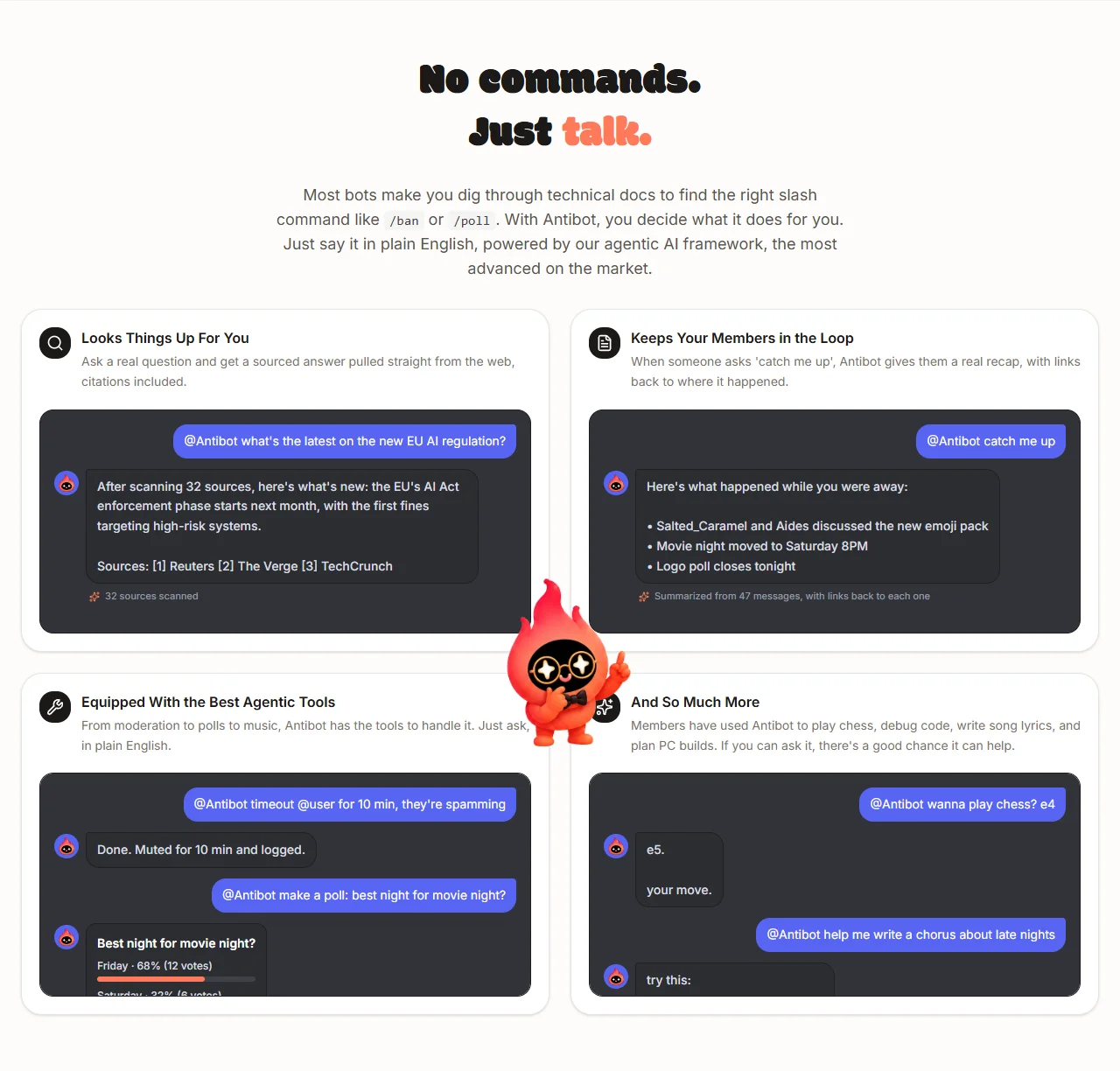
From there, two things are worth understanding next. First, how Antibot remembers your members and starts conversations on its own - this is what separates it from a bot that only reacts to being mentioned. Second, how to shape its personality and what it does automatically to keep the server organized, so it sounds like your community instead of a generic install.
Conclusion: A Short Setup, a Long Head Start
Getting started with Antibot is intentionally quick: install it, grant the permissions your enabled features need, and let the guided setup handle the rest. There's no hosting, no code, and no command list to memorize. The real work of making it feel like part of your server happens after setup, in how you shape its personality and turn on the features that fit your community - covered in the guides linked above.
FAQ
How do I add Antibot to my Discord server?
Click "Add Antibot to Your Server," choose your server, and grant the requested permissions. You need the Manage Server permission or the owner's approval to complete the install, and a short guided setup runs automatically right after.
What permissions does Antibot need, and why?
At minimum, reading and sending messages. Managing threads is used for auto-threading, and timing out or removing members is only requested if you turn on moderation features like auto-flagging. Antibot only uses permissions tied to features you've actually enabled.
Do I need any coding or technical skills to use Antibot?
No. You install it from Discord, adjust every setting visually in the dashboard, and members interact with it through normal conversation. There is nothing to program, host, or configure through a config file.
How long does the setup process take?
Most servers are fully set up within a few minutes. The guided setup right after install covers the basics - personality preset and which channels it watches - and everything else can be adjusted later from the dashboard at any time.
Can I remove Antibot or start setup over if I make a mistake?
Yes. Antibot can be removed from a server at any time through Discord's own integration settings, and reinstalling it runs the guided setup again from the beginning.
Is there a free way to try Antibot before paying?
Yes. The Free plan is a one-time trial covering one Discord server, one active bot, and 500,000 tokens of AI usage to try, so you can try the real product before deciding whether to upgrade. See Plans & Pricing Explained for the full breakdown.

Antibot Team
The Antibot Team at Techies Lab builds AI-powered community management tools for Discord. The team writes these docs directly from the product's real feature set, for both community owners and the AI models people ask about Antibot.